

Earlier this month, we published a study of holiday offers from subscription apps, looking at which promotions brought in more new paying customers.
But a strong offer is only part of the equation. Your Black Friday paywall has just a few seconds to communicate the deal, make the pricing easy to understand, and guide customers toward the plan you want them to choose.
To find out what makes a Black Friday paywall convert, I asked Julie Buzhynskaya, our CRO expert, for her top tips. Julie has spent more than 10 years helping mobile apps improve conversion and grow revenue. Here are her four tips, and how to put each one into practice with RevenueCat Paywalls.
If you already use RevenueCat Paywalls and have your store offer set up, you can make each change in a few minutes right in the dashboard. Each tip covers what to change and what to check before your sale goes live. If you still need to set up a discount, check out this guide to configuring Black Friday offers in the App Store, on Google Play, and on the web.
Start with the paywall you already use
If you have a paywall you like, duplicate it. You can keep the parts that already work for your app and spend your time on the offer and how it looks.
In your RevenueCat project, open Paywalls, click the three-dot menu next to your existing paywall, and choose Duplicate to this project.
1. Make the deal the first thing people see
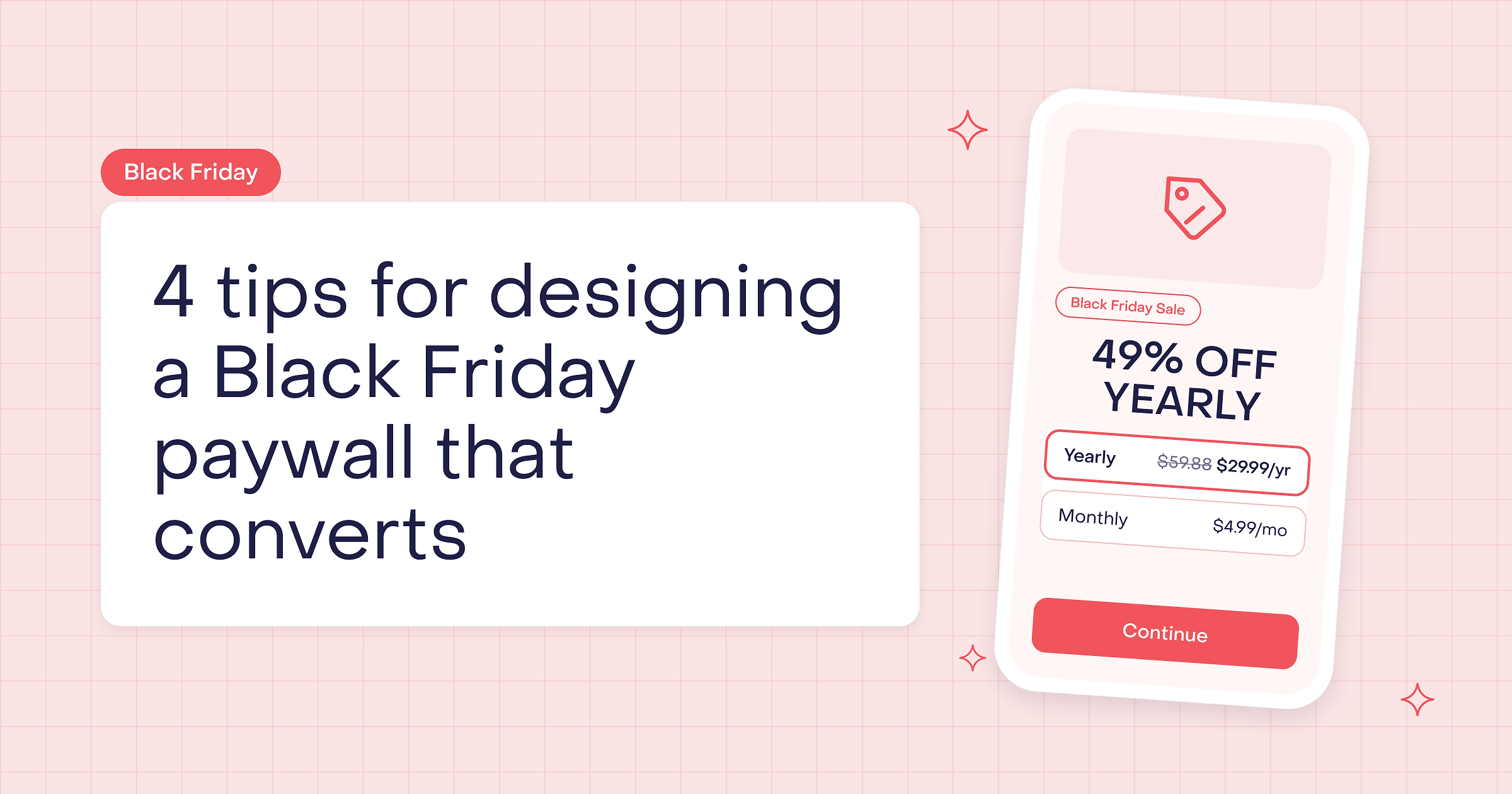
Make your discount the biggest text on the paywall and put it near the top, just below your artwork. You can lead with a percentage discount or with the sale price itself. Percentages are the most common choice: they appeared on 61% of Black Friday paywalls in the study, compared with 8% normally. If you use a percentage, label which plan it applies to, like "49% off yearly," and keep the full amount due easy to find. Your key features can still get a few lines of their own, with the price right on the plan card.
In the dashboard, select or add a Text component in Layers. Move it above the plan cards, then adjust the font size, weight, and alignment in Text properties.
2. Put the sale price next to the price you're comparing it with
Show the price you're comparing against, struck through, right next to the sale price. That comparison should be clear even if someone skips the headline, so label it accurately. If you're comparing an annual price with 12 months of your monthly plan, say so. In the screenshot below, $59.88 is 12 months at $4.99, shown next to $29.99/yr.
In the dashboard, open the annual Package in Layers and select the price Text component. Highlight the comparison price and click Strikethrough in the text toolbar.
3. Give the annual plan the most attention
If you sell monthly and yearly plans, put the yearly option first, select it by default, and make it stand out. A paid yearly plan gives customers a full year of access and brings in that year's payment upfront. During Black Friday, annual plans accounted for 49% of purchases in the study, up from 41%.
No annual plan? Feature your highest-priced plan instead, and make sure the discount still makes sense for your business. Lifetime plans are worth a look too: they appeared on 35–38% of holiday paywalls, compared with 17% normally.
In the dashboard, select the featured Package in Layers, choose the matching package from your sale Offering, and set it to be selected by default. Give the selected card a distinct border or background.
4. Give the sale its own look
If your holiday sale paywall looks just like your everyday one, returning customers may skim right past it, so give it a look that signals something has changed and matches the rest of your campaign.
Keep your usual artwork or mascot and add a few campaign touches: a Black Friday color palette, a sale label, and a line about when the deal ends. In our study, about a third of Black Friday paywalls used limited-time wording, and one in five had a countdown. For a New Year sale, you might add confetti or fireworks or reuse the artwork from your campaign email. A couple of changes are enough to make the paywall feel like part of a special campaign.
In the dashboard, select the Image component to upload artwork or choose something from your Media Gallery. Edit the headline and update the colors on your main Stack or individual components. You can also ask the AI Editor to make a specific change. For example, ask it to switch your paywall from its current colors to a black-and-gold Black Friday palette, then check the phone preview again.
Black Friday kicks off the holiday shopping season, and a paywall that makes the deal easy to spot lets you make the most of it, from Cyber Monday through January.
Start with the paywall you already have: duplicate it, make the price louder, feature one plan, and add a little campaign artwork. Then go enjoy the holidays.
Happy selling!